Looking for a versatile media player? ibo player is undoubtedly one of the most popular solutions for accessing your favorite content on almost any device.
This application, also known as ibo player Pro, makes it simple to play media files and access IPTV channels through an intuitive interface. Whether you’re using a Firestick, Android smartphone, iPhone, or even a Smart TV, this guide will walk you through the installation and configuration process step by step.
Today, we’ll explore together how to install IBO Player Pro 2025 on different devices, set up your first IBO Player playlist, and understand the available IBO Player activation options. Whether you’re a beginner or simply looking for specific information, this guide is designed for you .
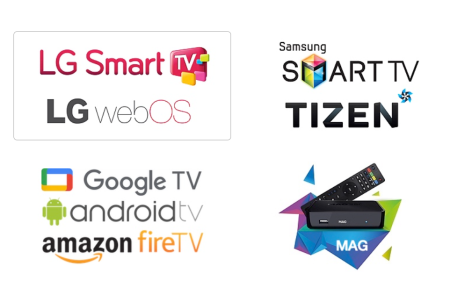
Installing ibo player Pro on Different Devices
The IBO Player Pro installation process varies depending on your device but generally remains straightforward. Here’s how to proceed for each popular device type.
On Firestick
To install IBO Player Pro on your Firestick, start by enabling “Apps from Unknown Sources” in settings. Then, install the Downloader app from the Amazon App Store. Open Downloader and enter the official IBO Player Pro URL. Once the download is complete, launch the installation and wait a few seconds. The application will appear in your recently installed apps list.
On Android (TV, smartphone, tablet)
Installation on Android is particularly straightforward. You have two main options: either download the APK file from IBO Player’s official website or install it via Google Play Store if available. For APK installation, first enable “Unknown Sources” in your device’s security settings. Then download the APK file and open it to start installation. On Android TV, you can also use a USB drive to transfer and install the APK using a file manager.
On iOS (iPhone, iPad, Apple TV)
For Apple devices, installation is slightly different due to App Store restrictions. You’ll need to use an alternative method like AltStore or TestFlight to install IBO Player. For Apple TV, if you have a recent model running tvOS, you can install IBO Player Pro by following the specific instructions on the official website. Note that this installation may require using a Mac or PC in some cases to complete the process.
On Windows PC
To install IBO Player Pro on your Windows PC, visit the official website and download the compatible version. After obtaining the installation file, double-click it and follow the on-screen instructions. The installation is usually quick and requires no special configuration. Once installed, you can launch the application from your desktop or Start menu. Ensure your PC meets the minimum requirements for a smooth experience with your IBO Player subscription.
On LG Smart TV
LG Smart TVs run on webOS, requiring a specific approach for IBO Player activation. Depending on your model, you might need to modify settings to allow unofficial app installations. Access the settings menu, then the security section to enable installations from unknown sources. Next, use a built-in browser or USB drive to download and install the application. On some newer models, you can install directly from the LG Content Store if available.
On Samsung Smart TV
For Samsung TVs, the process depends on the Tizen OS version. Start by enabling “Developer Mode” in settings. You’ll need to create a developer account if you haven’t already. Then, download the application to a USB drive, connect it to your TV, and use the “My Files” app to install. Alternatively, some models allow installation via a QR code that you can scan from the TV settings.
Regardless of your chosen method, remember to regularly check for ibo player Pro updates to enjoy the latest features and bug fixes. Additionally, some devices may require extra steps depending on their system version or manufacturer restrictions. Once installed, you can easily set up your ibo player playlist and start enjoying your content.
First Steps with the Application After Installation

Once you have ibo player installed on your device, several essential steps await before you can fully enjoy your content. Let’s explore how to get started with this versatile application.
Locating the MAC Address and Device Key
After launching ibo player for the first time, you’ll need to identify two crucial pieces of information: your MAC address and device key. These details are essential for IBO Player activation and registration with your IPTV provider.
To find this information:
- Launch ibo player on your device.
- Navigate to Settings from the main menu.
- Look for the System Information or About section.
- Carefully note down the MAC address (typically in XX:XX:XX:XX:XX:XX format) and device key.
These unique identifiers are specific to your device and will be required during account activation. It’s recommended to save them or take a screenshot for easy reference during setup.
Navigating the Home Screen
The ibo player home screen serves as your central hub for navigation. At first glance, you’ll notice a clean interface with several main sections.
The top navigation bar provides quick access to different categories: Live TV, Movies, Series, and Settings. This intuitive organization makes content exploration effortless.
The screen’s center typically displays your recently watched channels and content, along with personalized recommendations if you’ve already set up an ibo player playlist. However, this area may appear empty during initial startup since no content source is configured yet.
For optimal navigation, take a moment to familiarize yourself with the various icons and menus. The search button, usually represented by a magnifying glass, will help you quickly locate specific content once your playlist is configured.
Managing Your Playlist
The most crucial step after installation is adding your first ibo player playlist. Without it, the application remains empty.
To add a playlist:
- From the home screen, go to Settings.
- Select Playlist Management or a similar option.
- Choose Add New Playlist.
- Select your preferred import method (M3U URL, Xtream Codes, or local file)
If you need to modify an existing ibo player playlist, the process remains straightforward. Access your configured playlists, select the one you wish to edit, and choose the Edit or Modify option. You can then update the URL, credentials, or other settings as needed.
For optimal organization, you can rename your playlists for easy identification, especially when managing multiple ibo player playlists. A convenient feature also allows you to set a default playlist that automatically loads when launching the application.
Remember that for your playlist to function properly, you need a valid IBO Player subscription from an IPTV provider along with the corresponding login credentials. These details are typically sent via email after registering for the service.
Setting Up an IPTV Playlist in IBO Player Pro
To maximize your ibo player Pro experience, proper playlist configuration is crucial. While this process involves technical steps, it remains accessible even for beginners. Follow this guide to set up your favorite channels within minutes.
Using M3U URL or Xtream Codes
IBO Player Pro offers two primary methods for adding your IPTV content. These options align with the most common formats used by IPTV providers.
The first method utilizes an M3U link, typically provided as a complete URL. This format offers simplicity and directness, making it ideal for newcomers. Alternatively, the Xtream Codes method requires three distinct pieces of information: server URL, username, and password. This second approach often provides enhanced stability and additional features.
Your choice between these methods primarily depends on what your IPTV service provides. Some providers offer both formats, while others stick to just one.
Adding Your IPTV Provider Information
To configure your ibo player playlist, start by accessing the official website. Here’s how:
- Visit the official website:https://iboplayer.com/device/login
- Enter your MAC address and device key in the appropriate fields.
- Click “Connect” to access your account.
Once connected, you’ll see two main options: “+Add Playlist” (for M3U links) and “+Add XC Playlist” (for Xtream Codes).
To add a playlist using an M3U link:
- Click on “+Add Playlist”
- Assign a name to your ibo player playlist for easy identification
- Paste the M3U URL provided by your IPTV service
- Enable the “Protect this playlist” option if you want to secure your content
- Confirm by clicking “Add”
To configure using Xtream Codes:
- Select “+Add XC Playlist”
- Name your IBO Player playlist
- Enter the server URL, your username, and password
- Add the port if required (often optional)
- Validate your configuration
This web-based method is particularly convenient as it eliminates the need to input lengthy URLs directly on your TV or mobile device.
Refreshing and Testing the Playlist
After adding your playlist through the website, the final step involves activating it on your device. This process is essential for synchronizing information between the website and the IBO Player application.
First, return to your device where ibo player Pro is installed. Close the application completely if it’s running. This is crucial because ibo player iptv Pro won’t automatically detect changes until you restart the application.
Now relaunch IBO Player Pro. The application should automatically load your newly added playlist. With proper IBO Player activation, you’ll see your content organized by categories: TV channels, movies, series, etc.
To verify everything works correctly, select a channel or content and check playback. If issues arise, ensure:
- Your internet connection is stable
- Your IPTV provider information is accurate
- Your IPTV subscription is active
If certain channels don’t work, this might be due to temporary server overload or geographical restrictions. However, most of your content should be accessible immediately after configuration.
IBO Player Pro stands out particularly for Smart TVs due to its stability, especially with large playlists. Following these simple steps ensures quick access to your favorite content.
Activating iboplayer Pro and Understanding Pricing
Before accessing all features of ibo player Pro, you’ll need to complete an activation process. The good news is that this media player offers a trial period before any financial commitment.
Free 7-Day Trial Period
ibo player Pro automatically provides a 7-day free trial upon installation. During this period, you can test the application without restrictions and verify its compatibility with your needs. This week-long trial grants you access to all premium features at no cost.
Moreover, this trial period is perfect for ensuring your ibo player playlists function properly with the application. If you encounter technical issues, it’s better to resolve them before proceeding with paid activation.
Important: The application itself doesn’t provide any media content. You must have your own IPTV playlists to fully utilize the application’s capabilities.
One-Time Payment for Lifetime Activation
After the trial period ends, a one-time payment is required to continue using the application. IBO Player activation offers lifetime access without monthly subscriptions or recurring fees. The standard price typically hovers around $8.99, though some resellers offer rates ranging from $7 to $12 .
Unlike many services that operate on a subscription model, IBO Player Pro favors a straightforward economic approach: pay once and use the service indefinitely. This model represents excellent value for regular users who want to manage their IBO Player subscription efficiently.
Official Website ibo player Activation
To activate iboplayer Pro, follow these simple steps:
- Visit the official website
- Purchase an activation code
- Enter the code in your application
- Verify your activation status
This streamlined process ensures you can quickly start enjoying your ibo player playlists and content without complicated procedures or recurring payments.
- Note down your MAC address and device key displayed during the first launch of the ibo player application
- Visit the official ibo player Pro website (usually indicated within the application)
- Select your desired activation period (typically lifetime)
- Enter your MAC address in the designated field
- Complete the payment using the available method
- Click “Activate” to finalize the ibo player activation process
Once activated, the ibo player subscription will work indefinitely on your device. However, remember that the activation is device-specific and non-transferable. If you switch devices, you’ll need to purchase a new activation.
Some IPTV providers occasionally offer free ibo player activation with long-term subscription packages , which can represent significant savings.
Tips for Optimal Experience
To enhance your experience with IBO Player Pro, certain adjustments and smart choices can make a substantial difference. Here are three essential tips to fully enjoy this application.
Choose a Reliable IPTV Provider
Your experience quality heavily depends on your IPTV provider. Before committing, ensure your internet connection offers at least 15 Mbps to avoid buffering issues with your IBO Player playlist. When researching, exercise caution regarding your sources. Prioritize well-established providers with positive reviews.
Also, verify service compatibility with your device. Some providers even offer their own IBO-based application, which can be installed on multiple devices without limitations.
Using External Players like VLC or MX
One of the major advantages of IBO Player is its compatibility with popular external players. If you encounter issues with VOD (Video on Demand) content playback, using VLC as an external player can instantly resolve these challenges .
To configure an external player with your IBO Player subscription:
- Navigate to IBO Player settings
- Look for “External Player” or “Playback Settings”
- Choose VLC or MX Player from the available applications
This simple modification significantly improves playback stability, especially for large files within your IBO Player playlist.
Enabling Parental Controls
The parental control feature in IBO Player is perfect for families. It creates a secure viewing environment by restricting access to certain content .
To activate this feature:
- Open IBO Player and go to Settings
- Select “Parental Control”
- Create a 4-digit PIN
- Save your settings
If you forget your code, try these default codes first: 0000, 1234, 9999, or 1111 . This functionality allows you to adjust restrictions based on your children’s age and set filters according to content ratings or specific titles .
With these simple adjustments, your ibo player activation experience will be smoother and family-friendly.
Conclusion
ibo player 2025 stands out as a versatile solution for multimedia enthusiasts. This player particularly excels with its intuitive interface and exceptional compatibility across almost all market-available devices.
Throughout this guide, we’ve explored various installation methods based on your device, whether you’re using a Firestick, Android smartphone, Apple device, or Smart TV. While setting up IBO Player playlists may seem technical initially, the detailed instructions provided above make the process straightforward and accessible.
One of the standout features of IBO Player remains its unique business model. Unlike most current services that rely on monthly subscriptions, IBO Player activation operates on a one-time payment system for lifetime access. This approach delivers exceptional long-term value, especially for regular users managing their IBO Player subscription.
Remember that your streaming experience heavily depends on choosing the right IPTV provider. A reliable service paired with IBO Player’s robust features ensures optimal viewing without unwanted interruptions.
Take advantage of the 7-day free trial to explore all features before making any financial commitment. Use this period to verify compatibility with your specific requirements and resolve any technical issues with your IBO Player playlist.
Finally, customization options like external player support and parental controls make IBO Player a comprehensive solution suitable for the entire family. These simple adjustments significantly enhance your daily experience with the application.
Whether you’re new to streaming or an experienced user, IBO Player 2025 deserves consideration for its user-friendly interface and outstanding performance.