ibo player

IBO Player Pro 2025: The Simple Beginner’s Guide [Easy Installation]

Looking for a versatile media player? ibo player​ is undoubtedly one of the most popular solutions for accessing your favorite content on almost any device.

This application, also known as ibo player​ Pro, makes it simple to play media files and access IPTV channels through an intuitive interface. Whether you’re using a Firestick, Android smartphone, iPhone, or even a Smart TV, this guide will walk you through the installation and configuration process step by step.

Today, we’ll explore together how to install IBO Player Pro 2025 on different devices, set up your first IBO Player playlist, and understand the available IBO Player activation options. Whether you’re a beginner or simply looking for specific information, this guide is designed for you .

Request your free IPTV trial now and enjoy over 21,000 live TV channels and 160,000 movies and series in HD, Full HD, and 4K. Instant activation, 24/7 support, and multi-device compatibility.

Installing ibo player​ Pro on Different Devices

The IBO Player Pro installation process varies depending on your device but generally remains straightforward. Here’s how to proceed for each popular device type.

On Firestick

To install IBO Player Pro on your Firestick, start by enabling “Apps from Unknown Sources” in settings. Then, install the Downloader app from the Amazon App Store. Open Downloader and enter the official IBO Player Pro URL. Once the download is complete, launch the installation and wait a few seconds. The application will appear in your recently installed apps list.

On Android (TV, smartphone, tablet)

Installation on Android is particularly straightforward. You have two main options: either download the APK file from IBO Player’s official website or install it via Google Play Store if available. For APK installation, first enable “Unknown Sources” in your device’s security settings. Then download the APK file and open it to start installation. On Android TV, you can also use a USB drive to transfer and install the APK using a file manager.

On iOS (iPhone, iPad, Apple TV)

For Apple devices, installation is slightly different due to App Store restrictions. You’ll need to use an alternative method like AltStore or TestFlight to install IBO Player. For Apple TV, if you have a recent model running tvOS, you can install IBO Player Pro by following the specific instructions on the official website. Note that this installation may require using a Mac or PC in some cases to complete the process.

On Windows PC

To install IBO Player Pro on your Windows PC, visit the official website and download the compatible version. After obtaining the installation file, double-click it and follow the on-screen instructions. The installation is usually quick and requires no special configuration. Once installed, you can launch the application from your desktop or Start menu. Ensure your PC meets the minimum requirements for a smooth experience with your IBO Player subscription.

On LG Smart TV

LG Smart TVs run on webOS, requiring a specific approach for IBO Player activation. Depending on your model, you might need to modify settings to allow unofficial app installations. Access the settings menu, then the security section to enable installations from unknown sources. Next, use a built-in browser or USB drive to download and install the application. On some newer models, you can install directly from the LG Content Store if available.

On Samsung Smart TV

For Samsung TVs, the process depends on the Tizen OS version. Start by enabling “Developer Mode” in settings. You’ll need to create a developer account if you haven’t already. Then, download the application to a USB drive, connect it to your TV, and use the “My Files” app to install. Alternatively, some models allow installation via a QR code that you can scan from the TV settings.

Regardless of your chosen method, remember to regularly check for ibo player​ Pro updates to enjoy the latest features and bug fixes. Additionally, some devices may require extra steps depending on their system version or manufacturer restrictions. Once installed, you can easily set up your ibo player​ playlist and start enjoying your content.

Request your free IPTV trial now and enjoy over 21,000 live TV channels and 160,000 movies and series in HD, Full HD, and 4K. Instant activation, 24/7 support, and multi-device compatibility.

First Steps with the Application After Installation

ibo player​

Once you have ibo player​ installed on your device, several essential steps await before you can fully enjoy your content. Let’s explore how to get started with this versatile application.

Locating the MAC Address and Device Key

After launching ibo player​ for the first time, you’ll need to identify two crucial pieces of information: your MAC address and device key. These details are essential for IBO Player activation and registration with your IPTV provider.

To find this information:

  1. Launch ibo player​ on your device.
  2. Navigate to Settings from the main menu.
  3. Look for the System Information or About section.
  4. Carefully note down the MAC address (typically in XX:XX:XX:XX:XX:XX format) and device key.

These unique identifiers are specific to your device and will be required during account activation. It’s recommended to save them or take a screenshot for easy reference during setup.

Navigating the Home Screen

The ibo player​ home screen serves as your central hub for navigation. At first glance, you’ll notice a clean interface with several main sections.

The top navigation bar provides quick access to different categories: Live TV, Movies, Series, and Settings. This intuitive organization makes content exploration effortless.

The screen’s center typically displays your recently watched channels and content, along with personalized recommendations if you’ve already set up an ibo player​ playlist. However, this area may appear empty during initial startup since no content source is configured yet.

For optimal navigation, take a moment to familiarize yourself with the various icons and menus. The search button, usually represented by a magnifying glass, will help you quickly locate specific content once your playlist is configured.

Managing Your Playlist

The most crucial step after installation is adding your first ibo player​ playlist. Without it, the application remains empty.

To add a playlist:

  • From the home screen, go to Settings.
  • Select Playlist Management or a similar option.
  • Choose Add New Playlist.
  • Select your preferred import method (M3U URL, Xtream Codes, or local file)

If you need to modify an existing ibo player​ playlist, the process remains straightforward. Access your configured playlists, select the one you wish to edit, and choose the Edit or Modify option. You can then update the URL, credentials, or other settings as needed.

For optimal organization, you can rename your playlists for easy identification, especially when managing multiple ibo player​ playlists. A convenient feature also allows you to set a default playlist that automatically loads when launching the application.

Remember that for your playlist to function properly, you need a valid IBO Player subscription from an IPTV provider along with the corresponding login credentials. These details are typically sent via email after registering for the service.

Request your free IPTV trial now and enjoy over 21,000 live TV channels and 160,000 movies and series in HD, Full HD, and 4K. Instant activation, 24/7 support, and multi-device compatibility.

Setting Up an IPTV Playlist in IBO Player Pro

To maximize your ibo player​ Pro experience, proper playlist configuration is crucial. While this process involves technical steps, it remains accessible even for beginners. Follow this guide to set up your favorite channels within minutes.

Using M3U URL or Xtream Codes

IBO Player Pro offers two primary methods for adding your IPTV content. These options align with the most common formats used by IPTV providers.

The first method utilizes an M3U link, typically provided as a complete URL. This format offers simplicity and directness, making it ideal for newcomers. Alternatively, the Xtream Codes method requires three distinct pieces of information: server URL, username, and password. This second approach often provides enhanced stability and additional features.

Your choice between these methods primarily depends on what your IPTV service provides. Some providers offer both formats, while others stick to just one.

Adding Your IPTV Provider Information

To configure your ibo player​ playlist, start by accessing the official website. Here’s how:

Once connected, you’ll see two main options: “+Add Playlist” (for M3U links) and “+Add XC Playlist” (for Xtream Codes).

To add a playlist using an M3U link:

  • Click on “+Add Playlist”
  • Assign a name to your ibo player​ playlist for easy identification
  • Paste the M3U URL provided by your IPTV service
  • Enable the “Protect this playlist” option if you want to secure your content
  • Confirm by clicking “Add”

To configure using Xtream Codes:

  • Select “+Add XC Playlist”
  • Name your IBO Player playlist
  • Enter the server URL, your username, and password
  • Add the port if required (often optional)
  • Validate your configuration

This web-based method is particularly convenient as it eliminates the need to input lengthy URLs directly on your TV or mobile device.

Refreshing and Testing the Playlist

After adding your playlist through the website, the final step involves activating it on your device. This process is essential for synchronizing information between the website and the IBO Player application.

First, return to your device where ibo player​ Pro is installed. Close the application completely if it’s running. This is crucial because ibo player​ iptv Pro won’t automatically detect changes until you restart the application.

Now relaunch IBO Player Pro. The application should automatically load your newly added playlist. With proper IBO Player activation, you’ll see your content organized by categories: TV channels, movies, series, etc.

To verify everything works correctly, select a channel or content and check playback. If issues arise, ensure:

If certain channels don’t work, this might be due to temporary server overload or geographical restrictions. However, most of your content should be accessible immediately after configuration.

IBO Player Pro stands out particularly for Smart TVs due to its stability, especially with large playlists. Following these simple steps ensures quick access to your favorite content.

Activating iboplayer​ Pro and Understanding Pricing

Before accessing all features of ibo player​ Pro, you’ll need to complete an activation process. The good news is that this media player offers a trial period before any financial commitment.

Free 7-Day Trial Period

ibo player​ Pro automatically provides a 7-day free trial upon installation. During this period, you can test the application without restrictions and verify its compatibility with your needs. This week-long trial grants you access to all premium features at no cost.

Moreover, this trial period is perfect for ensuring your ibo player​ playlists function properly with the application. If you encounter technical issues, it’s better to resolve them before proceeding with paid activation.

Important: The application itself doesn’t provide any media content. You must have your own IPTV playlists to fully utilize the application’s capabilities.

One-Time Payment for Lifetime Activation

After the trial period ends, a one-time payment is required to continue using the application. IBO Player activation offers lifetime access without monthly subscriptions or recurring fees. The standard price typically hovers around $8.99, though some resellers offer rates ranging from $7 to $12 .

Unlike many services that operate on a subscription model, IBO Player Pro favors a straightforward economic approach: pay once and use the service indefinitely. This model represents excellent value for regular users who want to manage their IBO Player subscription efficiently.

Official Website ibo player​ Activation

To activate iboplayer​ Pro, follow these simple steps:

  1. Visit the official website
  2. Purchase an activation code
  3. Enter the code in your application
  4. Verify your activation status

This streamlined process ensures you can quickly start enjoying your ibo player​ playlists and content without complicated procedures or recurring payments.

  1. Note down your MAC address and device key displayed during the first launch of the ibo player​ application
  2. Visit the official ibo player​ Pro website (usually indicated within the application)
  3. Select your desired activation period (typically lifetime)
  4. Enter your MAC address in the designated field
  5. Complete the payment using the available method
  6. Click “Activate” to finalize the ibo player​ activation process

Once activated, the ibo player​ subscription will work indefinitely on your device. However, remember that the activation is device-specific and non-transferable. If you switch devices, you’ll need to purchase a new activation.

Some IPTV providers occasionally offer free ibo player​ activation with long-term subscription packages , which can represent significant savings.

Tips for Optimal Experience

To enhance your experience with IBO Player Pro, certain adjustments and smart choices can make a substantial difference. Here are three essential tips to fully enjoy this application.

Choose a Reliable IPTV Provider

Your experience quality heavily depends on your IPTV provider. Before committing, ensure your internet connection offers at least 15 Mbps to avoid buffering issues with your IBO Player playlist. When researching, exercise caution regarding your sources. Prioritize well-established providers with positive reviews.

Also, verify service compatibility with your device. Some providers even offer their own IBO-based application, which can be installed on multiple devices without limitations.

Using External Players like VLC or MX

One of the major advantages of IBO Player is its compatibility with popular external players. If you encounter issues with VOD (Video on Demand) content playback, using VLC as an external player can instantly resolve these challenges .

To configure an external player with your IBO Player subscription:

  • Navigate to IBO Player settings
  • Look for “External Player” or “Playback Settings”
  • Choose VLC or MX Player from the available applications

This simple modification significantly improves playback stability, especially for large files within your IBO Player playlist.

Enabling Parental Controls

The parental control feature in IBO Player is perfect for families. It creates a secure viewing environment by restricting access to certain content .

To activate this feature:

  • Open IBO Player and go to Settings
  • Select “Parental Control”
  • Create a 4-digit PIN
  • Save your settings

If you forget your code, try these default codes first: 0000, 1234, 9999, or 1111 . This functionality allows you to adjust restrictions based on your children’s age and set filters according to content ratings or specific titles .

With these simple adjustments, your ibo player​ activation experience will be smoother and family-friendly.

Conclusion

ibo player​ 2025 stands out as a versatile solution for multimedia enthusiasts. This player particularly excels with its intuitive interface and exceptional compatibility across almost all market-available devices.

Throughout this guide, we’ve explored various installation methods based on your device, whether you’re using a Firestick, Android smartphone, Apple device, or Smart TV. While setting up IBO Player playlists may seem technical initially, the detailed instructions provided above make the process straightforward and accessible.

One of the standout features of IBO Player remains its unique business model. Unlike most current services that rely on monthly subscriptions, IBO Player activation operates on a one-time payment system for lifetime access. This approach delivers exceptional long-term value, especially for regular users managing their IBO Player subscription.

Remember that your streaming experience heavily depends on choosing the right IPTV provider. A reliable service paired with IBO Player’s robust features ensures optimal viewing without unwanted interruptions.

Take advantage of the 7-day free trial to explore all features before making any financial commitment. Use this period to verify compatibility with your specific requirements and resolve any technical issues with your IBO Player playlist.

Finally, customization options like external player support and parental controls make IBO Player a comprehensive solution suitable for the entire family. These simple adjustments significantly enhance your daily experience with the application.

Whether you’re new to streaming or an experienced user, IBO Player 2025 deserves consideration for its user-friendly interface and outstanding performance.
gse smart iptv

How to Install GSE Smart IPTV: A Step-by-Step Guide for Beginners

Looking to transform your viewing experience with GSE Smart IPTV but don’t know where to start? You’re not alone! Thousands of users are discovering this versatile application daily, which opens up a world of television content directly from their favorite devices through IPTV playlists.

GSE Smart IPTV has indeed become one of the most popular solutions for streaming television channels and on-demand content. Whether you’re using a smartphone, tablet, Smart TV, or Firestick, this application offers an intuitive interface suitable for both beginners and experienced users. While its installation and setup might seem complex at first, it’s actually quite straightforward when compared to alternatives like iMPlayer IPTV.

In this comprehensive guide, we’ll walk you through the step-by-step installation and configuration of GSE Smart IPTV Pro. We’ll also cover daily usage of the application and solutions to common problems. By the end of this article, you’ll be perfectly equipped to fully enjoy all the features this application has to offer, including managing your IPTV M3U playlist. Let’s get started !

Downloading GSE Smart IPTV

To fully enjoy GSE Smart IPTV, the first step naturally involves downloading the application. Let’s discover together where to find this application securely and which versions are available for your device.

Where to Find the Application Safely

GSE Smart IPTV is available on several official platforms, ensuring a secure download without the risk of malware. Here are the legitimate sources based on your device:

  • For Android devices: The application is officially available on the Google Play Store. Simply open the Play Store, search for “GSE Smart IPTV” and follow the on-screen installation instructions. This method is recommended for all Android devices, including TV boxes and Smart TVs running Android

· For iOS devices: GSE Smart IPTV can be downloaded directly from the Apple App Store. Simply search for the application in the App Store and follow the installation prompts . The app is compatible with iPhone, iPad, Mac (with Apple M1 chip or later), and even Apple Vision .

· For Firestick: Unlike other platforms, GSE Smart IPTV isn’t available directly on the Amazon Store. For Amazon devices like Firestick, the app needs to be sideloaded (manual installation) .

It’s strongly recommended to avoid downloading from unofficial third-party sites to maintain device security, especially when managing your IPTV playlist.

Available Versions by Device

GSE Smart IPTV offers different versions tailored for various operating systems and hardware architectures:

For Android:

· Minimum required version: Android 4.1 or higher

· App size: approximately 36.39 MB

· Supported architectures: armeabi-v7a, x86, arm64-v8a, x86_64

· Available free on Play Store for managing IPTV M3U playlist

For iOS and Apple devices:

· Requires iOS 16.0 or later for iPhone

· Requires iPadOS 16.0 or later for iPad

· For Mac: macOS 13.0 or newer and Mac with Apple M1 chip or later

· Compatible with visionOS 1.0 or higher for Apple Vision

For Windows and Mac: The application is also available for computers, though for some platforms like Windows, using an Android emulator might be necessary to run GSE Smart IPTV Pro .

For Smart TV: Compatibility varies depending on your TV’s operating system. Smart TVs running Android can install the gse smart iptv app directly from the Play Store .

If you experience issues with the latest version of GSE Smart IPTV Pro, you can download previous versions for Android devices. This can be particularly useful if you encounter compatibility issues or errors with the most recent version .

It’s crucial to understand that GSE Smart IPTV is solely a media player and doesn’t include any pre-installed content. You’ll need to add your own iptv m3u playlist and EPG guides to access content . The app maintains no affiliations with third-party providers and doesn’t offer predefined channels.

Request your free IPTV trial now and enjoy over 21,000 live TV channels and 160,000 movies and series in HD, Full HD, and 4K. Instant activation, 24/7 support, and multi-device compatibility.

Installing the Application on Different Devices

The installation process for GSE Smart IPTV varies depending on your device type. Follow the device-specific instructions to quickly start using this versatile application.

Installation on Android

Installing GSE Smart IPTV on Android is a straightforward process. Begin by opening the Google Play Store on your Android device, whether it’s a smartphone, tablet, or TV box. Search for “GSE Smart IPTV” and select the official app developed by Droidvision.

Two versions are available for Android:

  • The Pro version (paid, approximately $3)
  • The standard version (available on select devices)

The Pro version is typically recommended as it provides an ad-free experience and smoother operation with your iptv playlist. After selecting the app, click “Install” and wait for the download to complete. Once installed, launch the app and accept the terms of use and necessary permissions for proper functionality. The implayer iptv features ensure seamless streaming of your playlist iptv content .

Installation on iOS

For Apple devices (iPhone, iPad, or Apple TV), the installation process follows a similar pattern but with some unique characteristics. First, open the App Store and search for “GSE Smart IPTV.” You’ll notice the app is listed as “Advanced IPTV Solutions” with Droidvision as the publisher.

Unlike Android, iOS users have access to two distinct versions:

  • GSE Smart IPTV Pro (paid version, around $3)
  • GSE Smart IPTV Lite (free version)

Click “Get” for the free version or tap the price to purchase the Pro version. After purchase, the button changes to “Install.” Once downloaded, launch the app and accept the terms of use to complete the setup.

Installation on Smart TV

Smart TV installation varies entirely based on your television’s operating system. For Smart TVs running Android TV, the process mirrors that of other Android devices. Access your TV’s Google Play Store, search for “GSE Smart IPTV,” and follow the on-screen installation prompts.

However, for other proprietary systems (like Samsung’s Tizen or LG’s WebOS), GSE Smart IPTV isn’t directly available. In such cases, consider using an external device like a Firestick or Android TV box to access your iptv m3u playlist.

Installation on Firestick

Installing on Firestick requires a more complex approach since GSE Smart IPTV isn’t available on the Amazon Store. You’ll need to perform “sideloading” (manual installation). Here’s the process:

  1. Enable “Apps from Unknown Sources”: Navigate to Settings > My Fire TV > Developer Options and activate this setting.
  2. Install the “Downloader” app from the Amazon Store to download the GSE Smart IPTV APK file.
  3. Launch Downloader and enter “gsesmartiptv.com” in the address bar.
  4. Scroll down slightly and select “Download for Amazon devices.”
  5. Wait for the download to complete, then click “Install” when prompted.
  6. After successful installation, you can remove the APK file to free up space on your Firestick.
  7. Return to the home screen to find GSE Smart IPTV in your list of applications.

Regardless of your chosen platform, after installation, the next step involves configuring the application by adding your iptv m3u playlist or setting up Xtream Codes API according to your IPTV subscription.

Request your free IPTV trial now and enjoy over 21,000 live TV channels and 160,000 movies and series in HD, Full HD, and 4K. Instant activation, 24/7 support, and multi-device compatibility.

Configuring GSE Smart IPTV After Installation

gse smart iptv pro

Once you’ve installed GSE Smart IPTV on your device, configuration is the crucial step that enables access to your favorite channels. This phase involves three essential aspects: adding playlists, importing program guides, and adjusting playback settings.

Adding an M3U Playlist

Adding a playlist iptv is the first step to accessing content on GSE Smart IPTV. Here’s how to proceed:

  • Launch GSE Smart IPTV on your device.
  • Tap the three horizontal lines in the upper left corner to open the main menu.
  • Select “Remote Playlists” option.
  • Tap the “+” sign in the top right corner of the screen.
  • Choose “Add M3U URL” from the available options.
  • In the first field, enter a name for your playlist (for example, “My Channels”).
  • In the second field, paste the M3U URL provided by your IPTV service provider.
  • Tap “Add” to complete the process.

After adding, your iptv playlist will appear in the remote playlists list. Simply click on it to load all available channels. Note that loading may take a few moments depending on the playlist size and your internet connection speed.

Moreover, it’s recommended to use the M3U format with options so your channels are automatically organized by categories, significantly simplifying navigation.

Importing EPG Guide

The Electronic Program Guide (EPG) significantly enhances your experience by displaying information about current and upcoming shows. To add it:

  1. Return to the main menu by tapping the three horizontal lines.
  2. Select “EPG program guide” from the menu options
  3. Tap the “+” icon located in the top right corner
  4. Select “Add Remote EPG source” from the available options
  5. In the first field, name your EPG guide (ideally matching your GSE Smart IPTV playlist name for easier association)
  6. In the second field, enter the EPG URL provided by your IPTV service provider
  7. You can enable the “auto-update” option to keep the guide automatically updated
  8. Tap “Add” to confirm your settings

After adding the EPG guide, the GSE Smart IPTV app will download all program-related information. This process may take some time depending on the guide’s size. Once completed, you can view show details by long-pressing any channel in the channel list.

Note that some IPTV providers include EPG data within the M3U playlist URL. In such cases, you don’t need to add a separate EPG source, as the application will automatically detect and utilize this information.

Request your free IPTV trial now and enjoy over 21,000 live TV channels and 160,000 movies and series in HD, Full HD, and 4K. Instant activation, 24/7 support, and multi-device compatibility.

Configuring Playback Settings

GSE Smart IPTV Pro offers various customization options to enhance your viewing experience:

  • External Video Player: The app supports external players like MX Player. To add one, go to “External Player” in the main menu, tap the “+” icon, and select your preferred player.
  • General Settings: Under “Settings,” you can adjust various parameters including playback quality, subtitle preferences, and interface theme. These adjustments help customize the IPTV GSE Smart IPTV experience according to your preferences.
  • Favorites: To add a channel to favorites, long-press the desired channel in your playlist IPTV. The star icon will turn red, indicating successful addition to favorites. You can quickly access your preferred channels by clicking the star icon in the top right corner of the screen.

If you experience playback issues, try switching between “SW” and “HW” modes located in the top right corner while watching a channel. This option allows you to change the decoding mode and can resolve certain playback issues with your IPTV playlist.

Remember that GSE Smart IPTV regularly updates its remote playlists. Any changes made by your provider will automatically reflect in the app if you have enabled the auto-update option for your IPTV m3u playlist.

Daily Usage of the Application

Now that you’ve installed and configured the app, let’s explore how to effectively use GSE Smart IPTV Pro on your various devices daily.

Navigating the Interface

GSE Smart IPTV stands out with its user-friendly interface, similar to iMPlayer IPTV. The main screen is divided into two sections: a side menu on the left and a content area on the right. The side menu includes several categories:

  • LOCAL: Access to playlists stored on your device
  • REMOTE: Management of remote playlists and Xtream-Codes API
  • Mode: Toggle between mobile and TV modes based on your preferences

The app automatically detects your device type, but you can manually switch between mobile and TV modes if needed. The interface adapts to your screen for optimal viewing experience.

Changing Channels or Playlists

To navigate between your channels and playlists:

  • Use drag-and-drop to reorganize your channels according to your preferences
  • Sort your shows by genre or region for smoother navigation
  • To add a channel to favorites, long-press until the star icon turns red
  • Quickly access your favorite channels by clicking the star icon in the top right corner

GSE Smart IPTV automatically updates your channels and EPG guide, eliminating the need for frequent manual updates.

Activating Subtitles or Audio

To customize your audiovisual experience:

  • Touch the screen during video playback to display playback controls
  • Select the “Subtitles” icon (typically represented by “CC” or a dialogue bubble)
  • Choose your preferred subtitle language from the available list.
  • For audio options, follow the same process but select the audio icon instead.

GSE Smart IPTV allows you to customize subtitle size, style, and position for enhanced readability. Additionally, you can adjust audio settings, including volume levels and language preferences, ensuring optimal sound quality for your IPTV playlist experience.

Troubleshooting Common Issues

While generally reliable, GSE Smart IPTV may occasionally encounter issues. Learn how to quickly resolve the most common problems to fully enjoy your IPTV m3u playlist viewing experience.

Application Won’t Launch

When GSE Smart IPTV refuses to start or suddenly closes, try these solutions:

  • Restart your device – This simple action often resolves temporary memory or system resource issues with your playlist IPTV.
  • Check for updates – After an operating system update (iOS or Android), the app may become incompatible. Ensure your GSE Smart IPTV Pro is up to date.
  • Reinstall the application – If problems persist, uninstall and reinstall the app. This method is particularly effective on Apple TV after system updates that might corrupt app data, similar to iMPlayer IPTV troubleshooting.

For Apple device users, some have reported issues following tvOS updates. In such cases, performing a factory reset followed by a fresh installation of GSE Smart IPTV (without updating the system) may resolve the issue.

Playback or Streaming Issues

Playback interruptions are among the most common inconveniences when using IPTV GSE Smart IPTV:

For frozen picture or sound – Switch from “SW” mode to “HW” (or vice versa) by tapping the upper right corner during playback. This action changes the decoding mode and frequently resolves playback issues.

For stuttering or buffering – Try these solutions:

  • Restart your Wi-Fi router and device
  • Check your internet connection quality
  • Lower the stream quality if your connection is limited

Some users report that videos freeze after approximately 60 seconds of playback. If you encounter this issue despite having a stable connection, try closing and reopening the stream within your IPTV playlist.

Playlist or EPG Errors

The message “No data found, please check if your playlist link is correct” typically appears when:

  • Your playlist IPTV URL is incorrect or has expired
  • Your IPTV m3u playlist subscription has ended
  • Your provider’s server is experiencing temporary issues

To resolve such errors, first verify with your IPTV provider that your subscription remains active. Then, ensure your playlist URL is entered correctly without any extra spaces when using GSE Smart IPTV.

Additionally, if EPG data isn’t displaying properly in GSE Smart IPTV Pro, verify that your EPG guide URL is valid and its format is compatible with the application. Restarting the app can also help refresh this data.

Conclusion

GSE Smart IPTV thus represents a comprehensive solution for accessing your favorite television content across virtually all your devices. Throughout this guide, we’ve explored every essential aspect of this versatile application, from download to daily usage.

Indeed, the straightforward installation process stands as one of the main advantages of IPTV GSE Smart IPTV, whether you’re using Android, iOS, Firestick, or a compatible Smart TV. While configuration might initially seem technical, it quickly becomes accessible through the detailed steps we’ve shared.

Adding M3U playlists and EPG guides significantly transforms your viewing experience. These features not only enable access to your favorite channels but also allow you to check upcoming programs without leaving the app, similar to iMPlayer IPTV functionality.

Moreover, the customization options offered by GSE Smart IPTV Pro deserve special mention. The ability to organize channels, add favorites, and choose between different decoding modes gives you complete control over your multimedia experience.

Consequently, even when facing occasional technical issues, you now possess the knowledge needed to resolve them effectively. Buffering, playlist errors, or startup difficulties will no longer be insurmountable obstacles.

The potential of GSE Smart IPTV extends far beyond what we’ve covered here. The application continuously evolves through regular updates that enhance its performance and introduce new features, making it a top choice alongside other popular options like iMPlayer IPTV.

Ultimately, GSE Smart IPTV Pro serves as the perfect gateway to a world of customized television content. Its versatility in handling various IPTV playlist formats and reliability with M3U playlists make it an excellent choice for anyone seeking a tailored IPTV experience without major technical hurdles.

The next time you turn on your screen to enjoy your favorite programs through GSE Smart IPTV, you’ll certainly appreciate the seamless experience that this comprehensive knowledge provides. Happy streaming and enjoy your personalized playlist IPTV journey!

ottplayer

Unlock Seamless IPTV Streaming with OttPlayer – The Ultimate M3U8 Player

OttPlayer is one of the most versatile and user-friendly IPTV players available today, particularly renowned for its exceptional support of M3U8 playlists. This sophisticated media player stands out in the crowded streaming landscape by offering comprehensive compatibility with multiple streaming protocols, including HLS (HTTP Live Streaming), RTSP (Real-Time Streaming Protocol), TS by UDP (Transport Stream over User Datagram Protocol), and RTMP (Real-Time Messaging Protocol).

As a robust platform, OttPlayer delivers seamless streaming capabilities for live TV channels, an extensive collection of movies, and popular series from various IPTV service providers, ensuring an uninterrupted viewing experience. What makes it even more appealing is that users can access premium features without incurring any subscription costs. The OttPlayer APK and other versions of the application are readily available across all major app stores, making it easily accessible for users across different devices and operating systems.

Highlights of OttPlayer

  • Features comprehensive EPG (Electronic Program Guide) support, enabling users to efficiently track and manage channel programs, complete with detailed scheduling information and program descriptions.
  • Incorporates a sophisticated built-in search tool that utilizes advanced algorithms to help users quickly locate their favorite shows, movies, and channels within the vast content library.
  • Eliminates the need for any activation fee or hidden charges, providing complete access to the player’s full range of features from the moment of installation.
  • Delivers an exceptional ad-free streaming experience, ensuring uninterrupted entertainment without any commercial breaks or pop-up advertisements.
  • Supports full-screen viewing capabilities with adaptive resolution settings for optimal viewing experience across different screen sizes and devices.
  • Offers advanced playlist management features that allow users to organize their favorite shows into customized groups for quick and convenient access.
  • Includes a smart reminder system that helps users stay updated about their preferred content through timely notifications and alerts.

Does Ott Player Have an Official Website?

ottplayer

Yes, OttPlayer maintains an official website at https://ottplayer.tv/, serving as the primary hub for all user interactions and service access. While the player itself is free to use, users need to create an account to unlock its full potential. The Ott Player login process is straightforward – simply visit the official website, navigate to the Account section, and complete the registration process by providing the necessary information. This account creation step is essential for accessing personalized features and maintaining your content preferences across different devices.

Request your free IPTV trial now and enjoy over 21,000 live TV channels and 160,000 movies and series in HD, Full HD, and 4K. Instant activation, 24/7 support, and multi-device compatibility.

Is OttPlay Safe to Use?

Yes, OttPlayer is completely safe and secure to use, with robust security measures in place to protect user data. Like other media players, Ott-Player functions as a content delivery platform and doesn’t host any media content directly. However, it’s important to note that the legal implications primarily depend on the IPTV services you choose to stream through the player. Since IPTV services often face scrutiny over copyright issues, it’s crucial to take necessary precautions while streaming content. For enhanced security, users can employ a reliable VPN service like NordVPN to encrypt their internet connection and protect their online activities from unauthorized tracking.

Compatible Devices

Android Smartphone, Tablet, and TV: The OttPlayer APK is readily available on the Google Play Store for easy installation across all Android devices.
Apple TV, iPhone, and iPad: iOS users can download the application directly from the App Store with just a few clicks.
LG and Samsung Smart TV: Smart TV users can access the app through the LG Content Store and Samsung Smart Hub respectively.
PC: Windows users can enjoy OttPlayer Windows version available through the Microsoft Store, offering a desktop-optimized experience.
Amazon Firestick: While not directly available on the Amazon App Store, users can still access OttPlayer by downloading the IPTV APK file from a trusted source and sideloading it using the Downloader app on their Firestick device.

How to Stream IPTV on OttPlayer login

  1. Begin by launching the Ott-Player application on your preferred device after completing the installation process.
  2. On the home page, locate and click the Sign In button, then enter your registered Email address and Password in the respective fields.
  3. Carefully verify your login credentials and proceed by clicking the Sign In button to access your account.
  4. Once logged in, locate and select the Import Playlist option, then input the required Ott.Player IPTV playlist details in the designated fields.
  5. Allow the system to process and load your playlist, after which you can start enjoying your favorite IPTV content through the OttPlayer interface.

Request your free IPTV trial now and enjoy over 21,000 live TV channels and 160,000 movies and series in HD, Full HD, and 4K. Instant activation, 24/7 support, and multi-device compatibility.

Watch IPTV using Web OttPlayer

To access OttPlayer through your web browser, you’ll need to enter your OttPlayer code and complete the OttPlayer login process. This web-based version offers the same robust features as the standalone applications, making it a convenient option for users who prefer browser-based streaming. The web interface is optimized for various screen sizes and provides seamless access to your IPTV content without requiring any additional software installation.

  1. Launch any modern web browser on your preferred device and navigate to the official OttPlayer Web TV player interface at http://widget.ottplayer.tv/. This web-based platform offers seamless integration with your OttPlayer login credentials and provides access to your personalized IPTV content.
  2. Once the interface loads, locate and click the Edit option prominently displayed at the top of the screen. This action will open the playlist management interface where you can configure your streaming preferences and manage your OttPlayer IPTV content.
  3. In the management interface, identify and tap the Plus icon to initiate the playlist addition process. You’ll be presented with a dedicated field where you can input your playlist link. Ensure that the link format is compatible with OttPlayer Windows or other versions you’re using.
  4. Finally, confirm your selection by clicking the OK option, and you’ll be ready to enjoy streaming your preferred live TV channels directly through your device’s browser. The OttPlayer code system ensures secure access to your content across all platforms.

Frequently Asked Questions

Does OttPlayer provide customer assistance?

Yes, The App maintains dedicated customer support through Email (ottplayeriptv@gmail.com), ensuring users receive timely assistance with any technical issues, Ott-Player APK installation queries, or general platform-related concerns.

Request your free IPTV trial now and enjoy over 21,000 live TV channels and 160,000 movies and series in HD, Full HD, and 4K. Instant activation, 24/7 support, and multi-device compatibility.

What are the best alternatives to Ott-Player?

While Ott offers comprehensive IPTV streaming capabilities, alternative platforms like GSE Smart IPTV and Net IPTV Player provide comparable features and functionality for users seeking different options.

iptv pro

IPTV Pro – How to Activate and Watch IPTV with M3U Links Easily

IPTV Pro Player is a premium streaming application that offers comprehensive support for M3U file format and XSPF formats, enabling users to stream both live channels and on-demand content seamlessly. This professional-grade player requires a modest one-time investment of $2.99, making it an affordable solution for streaming enthusiasts. Similar to other IPTV players in the market, IPTV Pro maintains a clear distinction – it functions purely as a player and doesn’t provide or host any media content directly. Users need to separately configure their playlist file or URL, which they receive from their chosen IPTV service provider.

IPTV Pro Core Features

  • The player comes equipped with an intelligent autoplay functionality and maintains detailed playlist history, allowing users to keep track of their viewing patterns and resume content seamlessly.
  • IPTV Pro specializes in handling M3U and XSPF formats efficiently, ensuring smooth streaming of IPTV video content across various quality levels and bandwidths.
  • One of the standout features of this IPTV service is that it does not include any advertisements. Users can enjoy uninterrupted viewing experiences without any commercial breaks or pop-up disruptions.
  • The sophisticated parental control system is designed to give parents complete oversight of their children’s viewing habits. This feature includes content filtering, viewing time restrictions, and detailed activity logs.
  • The integrated Electronic Programme Guide, supporting both XMLTV and JTV formats, provides comprehensive information about upcoming program schedules, including show descriptions, duration, and genre classifications.
  • IPTV Pro boasts an intuitive, user-friendly interface that caters to both beginners and advanced users. The player also supports connectivity with external players, expanding its versatility for different streaming scenarios.
  • The powerful search functionality incorporates advanced algorithms to help users find their desired titles quickly and efficiently, with support for partial matches and category-based filtering.
  • The playlist management system allows users to add, organize, and switch between multiple playlists effortlessly, making it ideal for users who subscribe to multiple IPTV services.

Is the IPTV Pro Player Legal to Use?

iptv pro

Yes, IPTV Pro player app maintains complete legality as a streaming application, and users can download it officially through authorized distribution channels. However, it’s crucial to understand that the legality extends only to the player itself. The IPTV provider you choose to configure within the app may potentially be involved in copyright infringement. To protect your privacy and ensure secure streaming, it’s highly recommended to utilize reliable VPN services such as NordVPN. This additional layer of security helps maintain anonymity and protects against potential legal issues.

Request your free IPTV trial now and enjoy over 21,000 live TV channels and 160,000 movies and series in HD, Full HD, and 4K. Instant activation, 24/7 support, and multi-device compatibility.

Supported Devices

IPTV Pro, developed by Alexander Sofronov, is exclusively designed for the Android ecosystem, including Android-powered Smart TVs. Users can acquire the application directly from the Google Play Store for a one-time payment of $2.99. This investment grants lifetime access to all features without any recurring subscription fees.

For users with devices like Firestick and Google TV that don’t have direct access to the Play Store, IPTV Pro can be installed through sideloading methods. This process involves using tools like Downloader to install the APK version of IPTV Pro. However, it’s worth noting that this IPTV player currently doesn’t support iOS devices, including iPhone, iPad, and Apple TV. For users in the Apple ecosystem, alternative solutions like Perfect IPTV Player are recommended for handling M3U and XSPF file formats effectively.

How to Activate and Configure IPTV Pro Player

  1. Begin by launching the IPTV Pro Player application on your device. Look for the prominent + Add playlist button located at the center of the main interface.
  2. Select the ADD URL option from the available choices. In the provided field, carefully enter the playlist URL that you received from your IPTV service provider. Create a distinctive name for your playlist to easily identify it later, then confirm by tapping the OK button.
    • For users utilizing Xtream Codes login method, the configuration process requires additional details: Server: Port specification, Login ID credentials, Password authentication, Playlist name designation, and selection of Stream format (choosing between TS or HLS protocols).
  3. After completing the configuration process, the system will begin loading your channels. Once loaded, you’ll have full access to stream both live channels and on-demand content available through your provider’s service.

Request your free IPTV trial now and enjoy over 21,000 live TV channels and 160,000 movies and series in HD, Full HD, and 4K. Instant activation, 24/7 support, and multi-device compatibility.

Frequently Asked Questions

Does the IPTV Pro Player have Chromecast support?

Yes, IPTV Pro Player comes with built-in Chromecast support, offering users the flexibility to cast their content to larger screens. This feature enables seamless integration with Chromecast-enabled devices, allowing users to enjoy their favorite content on television sets and other display devices while maintaining full control through their mobile device. The Chromecast functionality supports both live channels and video-on-demand content, ensuring a consistent streaming experience across different viewing scenarios.

Does the IPTV Pro Player app have EPG support?

Yes. IPTV Pro Player offers comprehensive Electronic Program Guide (EPG) support, accommodating both XMLTV and JTV formats. This feature enables users to access detailed program schedules, show descriptions, and upcoming content information directly within the app interface. The EPG integration enhances the viewing experience by providing real-time programming data across multiple channels.

How do I contact the customer support team of the IPTV Pro player app?

Users can reach out to IPTV Pro’s dedicated customer support team through their official email address (iptvap@gmail.com). The support team typically responds to queries regarding technical issues, configuration problems, and general assistance within 24-48 hours.

Does the IPTV Pro player app support Xtream Codes API?

Yes. The IPTV Pro player app offers full compatibility with Xtream Codes file format, allowing users to seamlessly integrate and stream content from services utilizing this popular protocol. This support ensures broader compatibility with various IPTV service providers and content delivery networks.

Request your free IPTV trial now and enjoy over 21,000 live TV channels and 160,000 movies and series in HD, Full HD, and 4K. Instant activation, 24/7 support, and multi-device compatibility.

smart iptv

Smart IPTV Player Setup Guide – Step-by-Step Installation (SIPTV)

Smart IPTV (also known as SIPTV) is a versatile IPTV smart player that enables users to stream live channels and video-on-demand content through M3U URLs. The smart iptv app doesn’t provide any content directly – it functions purely as a player that requires users to input an M3U URL from their chosen provider. To unlock full functionality and link your M3U profile, a one-time activation fee of €5.49 is required.

Core Features

  • Comprehensive EPG functionality showing upcoming programming for all channels in your smart iptv channel list
  • Support for 4K quality streaming (dependent on your IPTV service provider’s capabilities)
  • Convenient favorites system to bookmark preferred channels
  • Ability to create and customize multiple playlists according to viewing preferences
  • User-friendly interface making channel navigation effortless on your iptv smart tv

Is the Smart IPTV Player Legal to Use?

The iptv smart player is completely legal to use since it doesn’t host any content internally – it simply serves as a streaming platform for content provided through your service provider. However, when accessing content from unofficial IPTV sources, it’s recommended to use reputable VPN services such as NordVPN for added security.

SIPTV Supported Devices

smart iptv

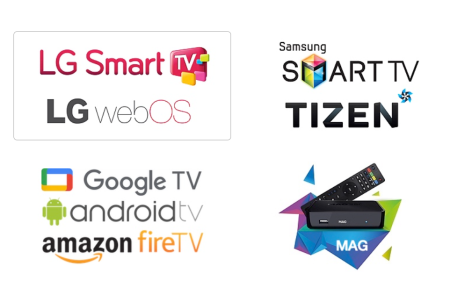
The application is officially available on the Google Play Store for Google TV and Android TV devices. For other Android devices including smartphones, tablets, and Firestick, users can download the APK directly from the official website (apk.siptv.app).

LG TV users can download the smart iptv app directly through the LG Content Store. Samsung Smart TV owners need to adjust certain TV settings to install the player. Detailed installation instructions for Samsung TVs are available on their support page (https://siptv.app/howto/sammy/).

Request your free IPTV trial now and enjoy over 21,000 live TV channels and 160,000 movies and series in HD, Full HD, and 4K. Instant activation, 24/7 support, and multi-device compatibility.

How to Activate Smart IP-TV Player

The platform IP SMART IP-TV offers a single lifetime plan priced at €5.49. Activation can be completed through their official website.

  • Navigate to Smart IP TV’s official website (https://siptv.app/activation/).
  • Select the Activation tab and input your device’s MAC Address.
  • Choose your preferred payment method – either PayPal or Debit/Credit Card.
  • Process the payment to activate your account.

How to Configure ip Smart IP-TV Player to Watch M3U URL

Configuration is only possible after purchasing the Smart IP.TV subscription.

iptv smart
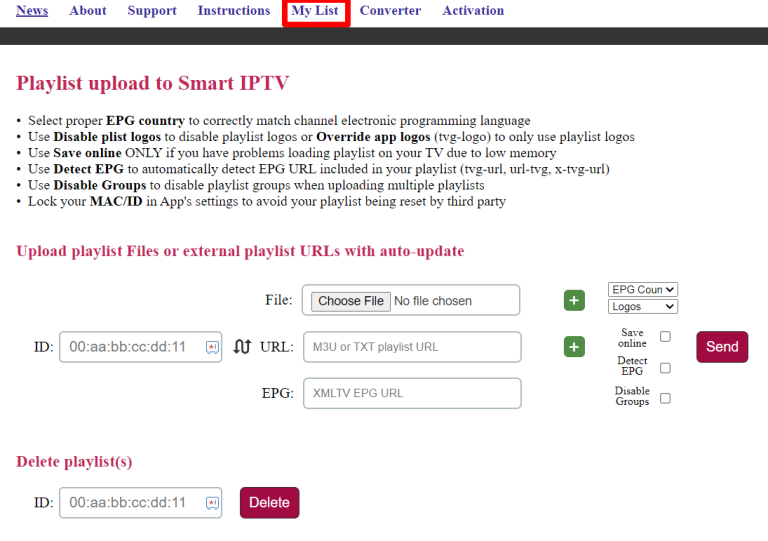
  • Access the My List page (https://siptv.app/mylist/) through your device’s browser.
  • Enter your device MAC ID and paste the M3U URL provided by your service provider.
  • Click Send and restart the installed player.
  • After submitting, your smart ip-tv channel list will automatically load onto your device.

Request your free IPTV trial now and enjoy over 21,000 live TV channels and 160,000 movies and series in HD, Full HD, and 4K. Instant activation, 24/7 support, and multi-device compatibility.

ip Smart-IPTV : Frequently Asked Questions

Is the ip Smart IPTV player supported on Apple devices?

The IP-TV Smart Player is not currently compatible with iOS devices including iPhone, iPad, or Apple TV platforms.

Does the Smart IPTV player have Xtream API support?

The iptv smart app only supports M3U URL format and does not include Xtream Codes API functionality.

Does the Smart IP-TV player offer a catch-up facility?

No, catch-up functionality is not available on this iptv smart tv platform.

Request your free IPTV trial now and enjoy over 21,000 live TV channels and 160,000 movies and series in HD, Full HD, and 4K. Instant activation, 24/7 support, and multi-device compatibility.

Conclusion

Smart IPTV transforms your television experience by providing flexible access to thousands of channels and on-demand content. Looking for a solution to enjoy your favorite programs without the limitations of traditional subscriptions? This comprehensive guide is designed for you.

Indeed, the Smart IPTV app has become one of the most popular applications for streaming IPTV content across various devices. While its installation and configuration might seem complex for beginners, we’ve created this detailed guide that explains step-by-step how to install, activate, and configure Smart IPTV in 2025.

Whether you’re using a Smart IPTV on Samsung TV, Android box, Fire Stick, or even a computer, you’ll find all the necessary information to get started quickly. Additionally, we’ll share optimization tips to enhance your viewing experience and resolve common issues with your IPTV smart TV setup.